ImageBlender is powerful photo editing software designed for education. This powerful image editor gives you the control you need to get your images looking just the way you imagine them, with effects and tools that are right at your fingertips. The unlimited possibilities for visual learning and classroom technology projects in ImageBlender make it fun and easy to edit images and create new art.
Available for:

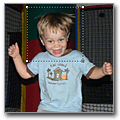
ImageBlender's easy-to-use interface makes basic image editing a snap. Whether you need to resize, crop, rotate, or even adjust for red-eye, ImageBlender makes it easy.
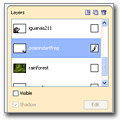
Use layers to control every aspect of your image, making it easy to edit text, add shapes, and effects.

ImageBlender includes a wide range of advanced tools and features. For example, you can use the CoolWord effect to place images inside text lettering and create stunning titles and visual vocabulary words.
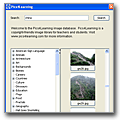
ImageBlender gives you direct access to over 25,000 photographs and illustrations on Pics4Learning.com. If you are creating montages, or looking for a specific image, this resource is invaluable.
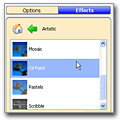
Double-click effects like oil paint, block print, sepia, and bevel to apply them to pictures or selections. Edit settings on effects like Cool Edge, hue, saturation, and levels to get your pictures just like you want them.
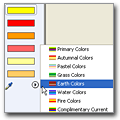
ImageBlender includes six color wells you can use to add backgrounds, fills, and gradients. Select from pre-designed palette of colors, or create and save your own.